

 Harriet Wetton
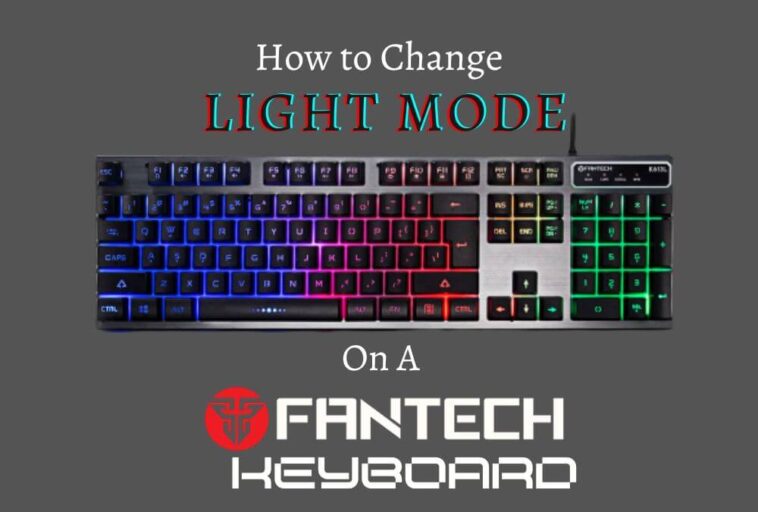
A good keyboard glow can change how your whole desk feels. At night it gives you just enough light to see your keys without lighting up the room. During the day it adds a little color to a plain workspace.
If you just unboxed a new board and keep wondering how to change light mode on a Fantech keyboard, the good news is that it usually takes less than a minute once you know where to look.
The tricky part is that Fantech makes many keyboards, and the exact key combination is not the same on every one of them. Some boards use a single key to cycle through effects. Others give you separate keys for brightness and speed.
A few budget models keep the lighting very simple. Because of this, many guides online hand you a list of shortcuts that only work on one model, and you end up pressing keys that do nothing.
This guide takes a more reliable route. You will learn how Fantech lighting controls work in general, which shortcuts are confirmed in official manuals, how to find the right keys on your own board, how to use the Fantech software on Windows, and how to fix the most common problems.
You will also find a few real life examples, so you can pick a lighting style that fits the way you actually use your computer.
How to Change Light Mode on a Fantech Keyboard
Hold the Fn key and press the lighting key for your model. Each press moves the keyboard to the next lighting mode. On the Fantech ATOM63 MK874V2, the official quick start guide says Fn + \ changes the backlight mode, Fn + Left Arrow slows the effect down, and Fn + Right Arrow speeds it up.
If you own a different model, look for small lighting icons printed on your keycaps, or open the user manual for your exact model number. Models that come with companion software can also change lighting from a Windows app. Both methods are explained below.
Understanding Fantech Keyboards and Their RGB Backlighting
Fantech sells a wide range of mechanical and membrane keyboards, including the MaxFit and Atom families. Most of them are aimed at gamers and everyday users who want good value. Lighting is one of the main selling points, and it does more than look nice.
If your monitor is the only light in a dark room, your eyes work harder to find the keys. Backlighting makes the letters on each keycap easier to read, which helps you type with fewer mistakes.
For gamers, lighting can also highlight the keys that matter most, such as movement keys, so your fingers find them faster during a match.
Fantech boards generally give you two ways to control the lights:
- Onboard hotkeys: These are commands built into the keyboard itself. You hold Fn and press another key. No software is needed, and the change happens instantly.
- Fantech software: Some models have a companion app that lets you edit effects, speed, colors, key functions and macros. The app is for Windows, and the options depend on your exact model.
Hotkeys are the quickest way to get a result, so that is where most people should start. Software is worth the extra step if you want to go beyond the preset effects.
Once your keyboard looks the way you like, you might want to improve the rest of your setup too. If sound is part of that, this short guide on how to make your airpods louder is a handy next read for your desk audio.
Find Your Model Number First
Before you press any keys, find out which Fantech model you have. This one step saves a lot of guessing. Different models use different shortcuts, and the manual for your model is the most trustworthy source for them.
Where to Look for the Model Number
Turn the keyboard over. You will see a sticker on the bottom with the model name and number, for example MK874V2 or MK855. Take a quick photo of it with your phone so you do not need to flip the board again.
Where to Get the Right Manual
Go to the official Fantech World website and open the support or download area. Search for your model number and download the manual. If your model has software, it is usually listed on the same page.
Always download from the official site, because files from random websites may not match your keyboard and can be unsafe.
Method 1: How to Change Light Mode on a Fantech Keyboard Using Fn Hotkeys
The Function key, marked Fn, is the fastest way to change your lighting. It works in the middle of a game or a document, and you do not need to close anything. Here is a simple process that works for most boards.
Step 1: Find the Fn Key
On most keyboards, Fn sits on the bottom row, often close to the right side of the spacebar. On compact layouts, such as 60 percent and 65 percent boards, it may be placed slightly differently, so check the legends on your keycaps.
Step 2: Read the Keycap Legends
Many gaming keyboards print a small second symbol or label on the keys that have a hold Fn function. These are often found on the arrow keys, the top row, or the navigation block. A lighting icon usually looks like a small sun, a bulb, or a wave. Look for the key that matches the lighting mode and use it with Fn.
Some compact models place the lighting mode on a key such as the backslash. That is the case on the ATOM63 MK874V2, where the official guide lists Fn + \ for changing the backlight mode.
Step 3: Hold Fn and Press the Lighting Key
Hold Fn, press the lighting key once, and watch the keyboard. Every press moves to the next effect in the list. The MK874V2 manual lists 17 lighting modes, so you may need to press several times to reach the one you want. If you pass it, keep pressing until the cycle starts again.
Step 4: Adjust Speed and Brightness
After you choose a mode, you can fine tune it. On the MK874V2, Fn + Left Arrow lowers the effect speed and Fn + Right Arrow raises it.
On the MK853 Maxpower, the manual shows controls for brightness up, brightness down, speed up and speed down placed on secondary key functions. Your manual will tell you which keys your model uses.
A good habit is to change one thing at a time. Pick the mode first, then speed, then brightness. This makes it easier to see what each key combination actually does.
What to Do When Nothing Happens
If you press a combination and the lights stay the same, do not assume the keyboard is broken. A few common reasons are:
- You pressed a combination from a different model.
- Fn was not held down long enough before the second key.
- The brightness is set to the lowest level, so changes are hard to see.
- Your model has fixed lighting and does not support mode changes.
Check the manual for your model first. That clears up most of these cases quickly.
What Official Fantech Manuals Confirm
Many online lists of Fantech shortcuts are copied from other websites and applied to every model. To avoid that, the table below only lists points that official manuals state for specific models. Treat it as a starting point, then confirm everything against the manual for your own board.
| Model | What the manual confirms |
|---|---|
| ATOM63 MK874V2 | Fn + \ changes the backlight mode. Fn + Left Arrow slows the effect. Fn + Right Arrow speeds it up. The board has 17 lighting modes. |
| MAXFIT108 MK855 | Plug and play with no driver needed for first use. The manual covers spectrum mode, RGB side illumination, turning the light on and off, reset to default, and recording a custom LED mode. |
| MK853 Maxpower | The manual shows brightness up, brightness down, speed up and speed down controls on secondary key functions. |
| MAXFIT81 Frost MK910 | The manual says the companion software works on Windows only. |
If your model is not in this table, that does not mean it lacks lighting controls. It only means this page has not verified them yet. Your own manual is the best place to confirm the exact keys.
Method 2: How to Change Light Mode on a Fantech Keyboard Using Software
Hotkeys are fast, but software gives you more room to experiment. On models that support it, the Fantech app lets you customize lighting effects, remap keys and record macros.
A hands on review of the MAXFIT67 by TechPowerUp found that the software handles key mapping, macros and lighting, though it noted that some advanced options, such as polling rate control, were missing.
You can read that review on TechPowerUp if you want an outside opinion on how the software feels in daily use.
Step 1: Download the Correct Software
Open the official Fantech website, go to the downloads or support section, and choose your exact model. Download the software and the manual together.
Using software meant for another model can lead to a keyboard that is not detected, so match the model name carefully.
Step 2: Install It and Connect the Keyboard
Run the installer and follow the prompts. Plug the keyboard straight into a USB port on your computer. A hub, especially an unpowered one, can cause detection problems.
Keep in mind that the MAXFIT81 manual states the software works on Windows only, so Mac users should rely on hotkeys.
Step 3: Open the Lighting Section
Once the app detects your keyboard, look for a tab related to lighting, LED, or light effects. The exact names depend on the version of the software and the model you own. You should see a preview of the keyboard and a list of available effects.
Step 4: Pick an Effect and Customize It
Choose a mode from the list and test it right away. Depending on your model, the software may offer controls such as:
- Color options: Choose a specific color instead of relying on the preset ones.
- Speed controls: Slow down or speed up the animation more precisely than hotkeys allow.
- Direction settings: Make waves travel in a direction that suits you.
- Custom lighting: Set up a personal layout, for example by lighting only the keys you use the most.
Not every model offers every option. A basic board may only let you pick from a list of presets, while a higher end one may allow detailed edits. If a control is missing, it usually means your model does not support it.
Step 5: Save Your Settings
Look for an Apply or Save button after you finish. Some models store lighting settings on the keyboard itself, so your choice stays when you plug the board into another computer. Others rely on the software running in the background.
Your manual will explain which one applies to your model. If your lighting returns to the old mode after a restart, saving the profile and setting the app to start with Windows are the first two things to try.
When your setup is finished, you may feel like tidying other corners of your digital life. If you have an old community that you no longer use, this walkthrough on how to delete a discord server shows you how to clear it out.
Preset Light Modes Explained

Lighting names can sound confusing, so here is what the most common modes actually do and when each one makes sense. Names vary a little from model to model, but the ideas stay the same.
Spectrum or Rainbow Wave Mode
This is the classic gaming look. Colors flow across the keys in a continuous wave. It shows off the full color range of your keyboard and looks great on a gaming desk. The downside is that moving color can be distracting when you are reading or writing for a long time.
Static Color Mode
Static mode holds one color and does not move. It is the calmest option and a smart choice for work, coding and late night study. A soft white or a warm color is easy on the eyes.
Breathing Mode
In breathing mode, the lights slowly fade up and down, like something taking a slow breath. It gives your desk a gentle glow without sharp movement. It is a nice middle ground between static and a full rainbow.
Reactive or Ripple Mode
Reactive modes light a key only when you press it, and some spread light outward like a ripple. Many typists enjoy the instant visual feedback. These modes also use less constant light, so they can feel less busy than a rainbow.
Zone and Game Style Lighting
Some keyboards can highlight only certain areas, such as the movement keys. This helps your fingers find important keys in the dark and keeps the rest of the board quiet. Check your manual to see if your model has this option.
Side Illumination
Some models, such as the MAXFIT108 MK855, include RGB side lighting in the manual. This glow along the edges adds ambient color to your desk without making the keys too bright.
Which Mode Should You Choose?
Here is a simple way to decide:
- Working at night: Choose static white or a warm color at low brightness.
- Gaming with friends: Try a wave or a reactive mode for a livelier feel.
- Streaming or recording: Pick a steady color that matches your overlay, because rapid color changes can look distracting on camera.
- Shared room: Use low brightness or turn the lights off so you do not disturb anyone.
How to Set a Comfortable Brightness
Bright lights look impressive in a photo, but they can be tiring during long sessions. A good starting point is a mid level brightness, then adjust until you can see the keys clearly without noticing the glow in your vision.
If you work in a bright room, you may barely notice the lighting at all, so turning it down can save a little power.
If you share a desk or sleep in the same room as your computer, consider lowering the brightness before you stop working. You do not need to change anything in software for this. A hotkey for brightness is enough on most models that support it.
How to Turn Off or Reset Fantech Keyboard Lighting
Sometimes you want the lights off completely, such as when you are watching a movie or leaving the computer on overnight. Here is how to handle both turning off and resetting.
Turning the Lights Off
Use the brightness down shortcut for your model until the keys go dark. Some manuals also list a dedicated light on and off function. For example, the MAXFIT108 manual lists a function to turn the light on or off. Look for this in your own manual.
Resetting to Default
If lighting gets stuck, or an effect behaves in a strange way, a reset to default can help. The MAXFIT108 manual includes a reset default mode. Because the key combination differs by model, use the one printed in your manual. Pressing a random reset combination from a different keyboard may change other settings.
After a reset, your board should return to its original lighting. If you used software to create a custom profile, you may need to apply it again.
Pros and Cons of Using Active RGB Lighting
RGB lighting is fun, but it helps to know the tradeoffs before you leave it on all day.
| Advantages | Disadvantages |
|---|---|
|
|
For most people, a calm mode at medium brightness is the best balance. You get readable keys without a lot of distraction.
Troubleshooting: What to Do If You Cannot Change Light Mode on a Fantech Keyboard
If you tried the steps above and still cannot change the lighting, work through these checks in order. Most problems come from power, software or a small setting.
The Lights Do Not Turn On at All
- Raise the brightness: The board may be set to the lowest level. Use the brightness up shortcut from your manual.
- Use a different USB port: Plug the cable directly into the computer instead of a hub or a front panel port. This rules out low power.
- Check Windows USB power saving: Open Power Options, edit your current plan, open the advanced settings and turn off USB selective suspend. This setting can cut power to devices to save energy.
- Try another computer: If the lights work elsewhere, the issue is likely on your computer and not the keyboard.
The Software Cannot Find the Keyboard
- Check that you downloaded the software for your exact model.
- Right click the app and choose Run as administrator.
- Unplug the keyboard, wait about five seconds, and plug it back in.
- Close other lighting programs such as OpenRGB or SignalRGB for a moment. Two programs trying to control the same device can cause conflicts.
The Lighting Keeps Returning to the Old Mode
This often happens when settings live in the software and are not saved on the keyboard. Open the app, save your profile, and enable the option to start with Windows if it exists. Check your manual to see whether your model keeps settings on the board.
Keys Light Up in the Wrong Way
If a few keys show the wrong color or an effect looks frozen, first change to a different mode and then back again. If that does not help, use the reset to default function from your manual. Dust under the keycaps can also cause odd lighting.
A gentle cleaning, like the one explained in this guide on how to clean a mechanical keyboard, sometimes brings back normal behavior.
Other Keyboard Problems
Sometimes the lighting problem is part of a bigger issue, such as keys not typing at all. In that case, this article on how to fix a keyboard that is not typing can help you narrow down the cause.
If your keyboard has no backlight at all, you may want to read how to turn on keyboard backlight settings on other devices to understand how backlights work. Outdated drivers can also cause trouble, and you can learn more in this guide on how to update keyboard drivers.
Long troubleshooting sessions can leave you stiff, so take a short break to stretch. If you want simple habits that fit into a workday, our guide on how to reduce neck fat naturally includes easy wellness tips.
Frequently Asked Questions
How do I change light mode on a Fantech keyboard?
Hold the Fn key and press the lighting key for your model. On the ATOM63 MK874V2, that is Fn + \. Press the combination again to move to the next mode. Check your manual if your model uses a different key.
How do I change the lighting speed on a Fantech keyboard?
Most models use Fn with two other keys for speed. On the MK874V2, Fn + Left Arrow slows the effect and Fn + Right Arrow speeds it up. Other models may use different keys, so use the manual for your board.
Do I need software to change Fantech keyboard lighting?
No. Hotkeys work without software, so you can change modes straight away. Software is only needed for deeper options, such as custom effects and macros, and only on models that support it.
Does the Fantech software work on a Mac?
The manuals we checked say the Fantech software works on Windows only. Hotkeys are handled by the keyboard itself, so they do not depend on the software. Check your model manual to confirm which shortcuts are available.
Why does my Fantech keyboard lighting reset after I restart my computer?
This usually means the lighting is controlled by software and the settings were not saved to the keyboard, or the app does not start with Windows.
Save your profile, turn on the start with Windows option if you see one, and check your manual to see whether your model can store settings onboard.
How do I turn off the lights on my Fantech keyboard?
Lower the brightness with the shortcut from your manual until the lights go dark. Some models also have a dedicated light on and off function, such as the one listed in the MAXFIT108 manual.
Conclusion
Now you know how to change light mode on a Fantech keyboard, and just as important, you know why the exact keys can differ from one model to the next.
Start by finding your model number. Then use the official manual to confirm the Fn shortcut for your board, test the preset modes, and tune the speed and brightness until it feels right for your room.
If you want more control, use the Fantech software on Windows for models that support it, and save your profile so your settings stick. If something goes wrong, check power, brightness and software conflicts first, then try a reset using the method in your manual.
A well chosen light mode makes your keyboard easier to use and nicer to look at. Take a few minutes to try each effect, pick the one that suits your workspace, and enjoy a setup that feels like your own.

